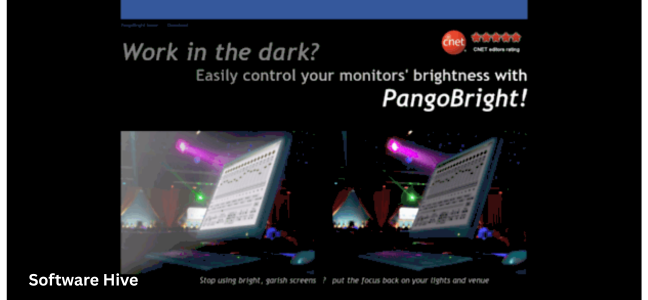

PangoBright is a free, small screen-dimming utility that reduces glare fast without adding clutter. It stays out of the way until needed, then offers system tray control for quick access to levels that work in bright offices or dark rooms. Clear, no-nonsense controls avoid guesswork, making changes feel instant and predictable.
Welcome to the ultimate guide for PangoBright, a lightweight Windows utility that solves a surprisingly common problem: screens that are still too bright even at their lowest hardware setting. Whether you are working late at night, using a bright monitor in a dark room, or managing multiple displays for a presentation, PangoBright offers a simple, free, and effective solution.
This comprehensive guide covers everything you need to know about PangoBright—its core features, per-monitor dimming capabilities, system tray controls, use cases, and why this tiny utility has earned a loyal following among users who just want their screens to be less bright.
What Is PangoBright? An Overview
PangoBright is a free screen dimming utility for Windows that allows users to reduce display brightness below the minimum hardware setting. Unlike monitor buttons or Windows built-in brightness controls (which have a hard lower limit), PangoBright applies a software overlay that darkens the screen further.
Core features at a glance:
| Feature | Description |
|---|---|
| Type | Screen dimming utility |
| Cost | Free |
| Size | Tiny (~100 KB) |
| Control | System tray pop-up menu |
| Multi-monitor | Per-display control |
| Platform | Windows |
| Installation | No installation (portable EXE) |
Why this tool stands out:
| Differentiator | Benefit |
|---|---|
| Dim below hardware minimum | Reduces brightness further than Windows allows |
| No color tint | Neutral dimming (unlike f.lux) |
| Per-monitor control | Different brightness for each screen |
| Lightweight | Near-zero resource usage |
| Portable | No installation needed |
| Instant | Changes apply immediately |
Who is this for?
- Laptop users whose minimum brightness is still too bright
- Multi-monitor users who want different brightness levels per screen
- Night owls working in dark rooms
- DJs, VJs, and theater technicians
- Anyone with light-sensitive eyes
- Users who want simple, no-frills dimming
The Problem PangoBright Solves
Hardware Brightness Limits
Most laptops and monitors have a minimum brightness setting—often around 20-30% of maximum. For many users, even this minimum is too bright in dark environments.
| Device Type | Minimum Brightness | Comfortable for Dark Room? |
|---|---|---|
| Modern laptop | Often still bright | Frequently too bright |
| External monitor | Varies | Often too bright |
| Desktop monitor | Can be high | Usually too bright |
The PangoBright Solution
| Solution | How It Works |
|---|---|
| Software overlay | Applies a dark layer over the screen |
| No hardware change | Does not modify monitor settings |
| Dim below minimum | Can reduce to 20% of original (or lower) |
Key Features
Very Light, Fast, and Predictable
| Benefit | Explanation |
|---|---|
| Tiny executable | ~100 KB—smaller than most images |
| Instant launch | No splash screens, no delays |
| Low CPU usage | Minimal impact on performance |
| No background processes | Only runs when active |
Quick Access via the Tray with Repeatable Presets
| Control | Description |
|---|---|
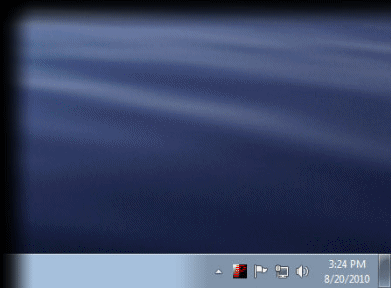
| System tray icon | Red “P” logo |
| Pop-up menu | Click to access brightness levels |
| Preset levels | 20%, 30%, 40%, etc. (adjustable) |
| No guesswork | Clear, obvious choices |
Per-Display Control Supports Focused Workflows
| Feature | Benefit |
|---|---|
| Multi-monitor support | Control each screen independently |
| Selective dimming | Dim laptop screen, keep projector bright |
| Prevents confusion | Each monitor shows its own brightness level |
Neutral Dimming (No Color Tint)
| Tool | Approach | Result |
|---|---|---|
| PangoBright | Neutral brightness overlay | Whites stay white |
| f.lux | Color temperature adjustment | Whites become warm/orange |
| Monitor controls | Hardware backlight | Whites stay white |
For users who dislike the orange tint of blue-light filters, PangoBright’s neutral dimming is ideal.
Use Cases
Nighttime Computer Use
| Scenario | Problem | PangoBright Solution |
|---|---|---|
| Working late | Bright screen causes eye strain | Dim to comfortable level |
| Reading in dark | Minimum brightness still harsh | Reduce further |
| Avoiding blue light | Filters tint colors | Neutral dimming |
Multi-Monitor Setups
| Scenario | Traditional Solution | PangoBright Solution |
|---|---|---|
| Coding on laptop + reference on monitor | Both same brightness | Laptop dim, monitor bright |
| Presenting from laptop to projector | Cannot dim laptop separately | Dim laptop, keep projector bright |
Sensitive Eyes
| Condition | Benefit |
|---|---|
| Light sensitivity | Reduce brightness below standard minimum |
| Migraine prevention | Darker screens may reduce triggers |
| Post-surgery recovery | Gentle on healing eyes |
Professional Environments
| Profession | Use Case |
|---|---|
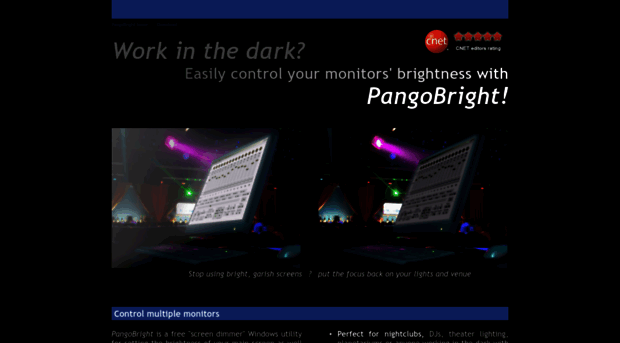
| DJ / VJ | Dim computer screen, keep projector bright |
| Theater lighting | Reduce glare from control screens |
| Planetarium | Darken displays for audience comfort |
How to Use PangoBright
Download and Run
| Step | Action |
|---|---|
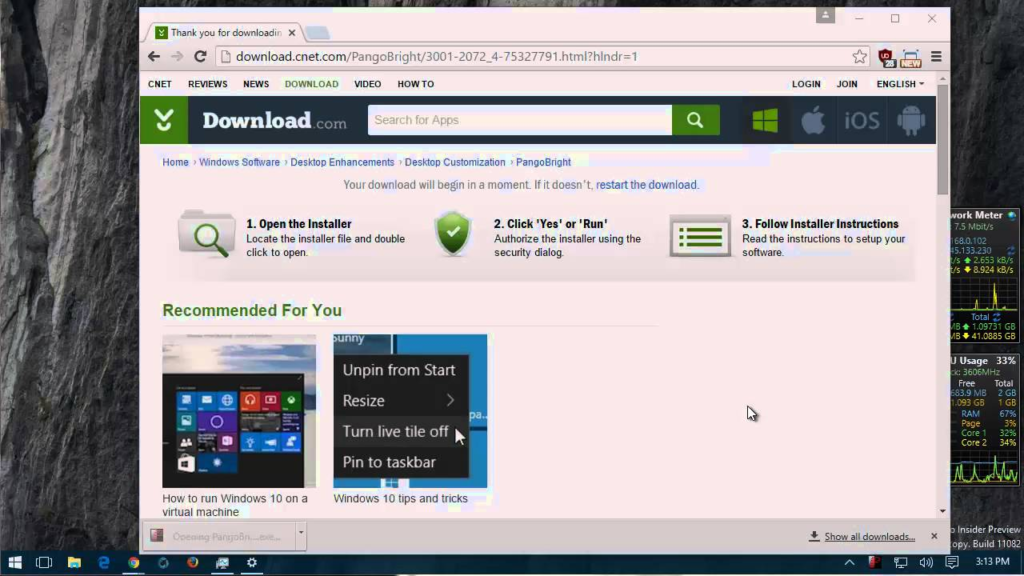
| 1 | Download PangoBright from CNET Download or developer’s site |
| 2 | No installation needed—run the EXE directly |
| 3 | PangoBright appears in system tray (red “P”) |
Adjust Brightness
| Step | Action |
|---|---|
| 1 | Click the red “P” icon in system tray |
| 2 | A pop-up menu appears with brightness levels |
| 3 | Select desired percentage (e.g., 20%, 30%, 40%) |
| 4 | Screen dims instantly |
Multi-Monitor Settings
| Step | Action |
|---|---|
| 1 | Open PangoBright menu |
| 2 | Look for per-monitor options |
| 3 | Select brightness for each screen individually |
Close PangoBright
| Action | Result |
|---|---|
| Right-click tray icon | Menu options |
| Select Exit | Closes the utility, screen returns to normal |
PangoBright vs. Alternatives
| Software | Primary Function | Color Temperature | Dimming Range | Multi-monitor | Complexity |
|---|---|---|---|---|---|
| PangoBright | Screen dimming | Neutral | Below hardware | Yes | Very low |
| f.lux | Color temperature | Warm (orange) | Limited | Yes | Low |
| Iris | Eye protection | Adjustable | Yes | Yes | Medium |
| CareUEyes | Breaks + dimming | Adjustable | Yes | Yes | Medium |
| Monitorian | Hardware brightness | Neutral | Hardware only | Yes | Low |
When to Choose PangoBright
| Reason | Explanation |
|---|---|
| You want neutral dimming | No orange tint |
| You need dimming below hardware minimum | Standard controls insufficient |
| You want simplicity | No schedules, no hotkeys, no complexity |
| You use multiple monitors | Per-display control |
When to Choose Alternatives
| Alternative | When to Use |
|---|---|
| f.lux | Want automatic color temperature adjustment |
| Iris | Need granular control and presets |
| CareUEyes | Want break reminders + dimming |
| Monitorian | Want hardware brightness control |
Pros and Cons Analysis
Advantages
| Pro | Explanation |
|---|---|
| Completely free | No cost, no trial limitations |
| Extremely lightweight | ~100 KB, near-zero CPU usage |
| Portable | No installation required |
| Dim below hardware minimum | Solves a real problem |
| Per-monitor control | Essential for multi-display users |
| Neutral dimming | Whites remain white |
| Instant response | No lag, no delay |
Disadvantages
| Con | Explanation |
|---|---|
| No hotkeys | Cannot dim with keyboard shortcuts |
| No scheduling | Must adjust manually |
| No color temperature | Only dimming, no blue-light filtering |
| Limited presets | Fixed percentage steps (not a slider) |
| No per-app rules | Cannot set different levels for different programs |
| Occasional flicker | Some users report brief flash when switching windows |
User Feedback Summary
| Positive Review | Negative Review |
|---|---|
| “It’s Gold, I love it!” | “Whites took on a greenish hue” |
| “Simple, perfect!” | “Sometimes flickers” |
| “Saved me from headaches” | “Settings are locked (90%, 80%, etc.)” |
| “Best Dimmer I’ve seen” | “Auto hides in hidden icons” |
Verdict: PangoBright is beloved by users who need simple, effective dimming. Occasional complaints about tint or flicker may be system-specific.
Technical Details
How It Works
| Component | Description |
|---|---|
| Technology | Software overlay (transparent window) |
| Dimming method | Applies dark layer over screen |
| Performance | Minimal CPU/GPU impact |
System Requirements
| Requirement | Minimum |
|---|---|
| OS | Windows XP, Vista, 7, 8, 10, 11 |
| Architecture | 32-bit or 64-bit |
| RAM | Any (extremely low) |
| Storage | ~100 KB |
File Information
| Detail | Value |
|---|---|
| File name | PangoBright.exe |
| File size | Approximately 100 KB |
| Publisher | PangoSoft |
| Signature | Digitally signed (per CNET) |
Tips and Best Practices
| Tip | Why It Helps |
|---|---|
| Pin to taskbar | Quick access |
| Run at startup (if supported) | Always available |
| Combine with dark mode | Even less eye strain |
| Test per-monitor settings | Find optimal configuration |
| Keep in system tray | Quick adjustments |
Frequently Asked Questions (FAQs)
1. Is PangoBright really free?
Yes, PangoBright is completely free. There is no trial period, no premium version, and no hidden costs.
2. Do I need to install PangoBright?
No. PangoBright is portable—you can run the EXE file directly without installation. Simply download and double-click.
3. Does PangoBright work on Windows 11?
Yes. Although not explicitly listed, user reviews indicate it works on Windows 10 and likely Windows 11.
4. Does PangoBright dim below the monitor’s minimum brightness setting?
Yes. This is the primary feature. PangoBright applies a software overlay, allowing dimming far below the hardware minimum.
5. Can I control brightness for each monitor separately?
Yes. PangoBright supports per-display dimming, allowing you to set different brightness levels for each monitor.
6. Does PangoBright change color temperature like f.lux?
No. PangoBright only dims the screen; it does not change color temperature. Whites remain white.
7. Why is my screen flickering with PangoBright?
Some users report brief flicker when switching windows. This may be system-dependent. Try updating graphics drivers or adjusting settings.
8. Can I set keyboard shortcuts for PangoBright?
No. PangoBright does not support hotkeys. You must use the system tray menu.
9. Does PangoBright work with games?
Yes, but with caveats: the overlay may conflict with full-screen games. Try windowed or borderless windowed mode.
10. How do I close PangoBright?
Right-click the tray icon and select “Exit.” The screen will return to normal brightness.
11. Why do I see a green tint on some screens?
A few users report a slight greenish hue. This may be due to monitor calibration or specific hardware. Try adjusting monitor’s color settings.
12. What brightness levels are available?
PangoBright offers preset levels (e.g., 20%, 30%, 40%, etc.). It does not have a continuous slider.
13. Can I set PangoBright to start with Windows?
Manually: Place a shortcut in the Startup folder. Not all versions support built-in startup options.
14. Is PangoBright safe to download?
Yes, from reputable sources (CNET Download, developer’s site). The installer is digitally signed, and user reviews are positive.
15. How does PangoBright compare to Dimmer?
PangoBright: Preset levels, per-monitor control, tiny size. Dimmer: Different interface; users may prefer one over the other.
The Philosophy: One Job, Done Well
PangoBright’s developer describes it succinctly: “It has one job, and one job only: to dim your screen(s).” This focus is the utility’s greatest strength. It does not try to manage color temperature, enforce breaks, or schedule changes. It simply dims.
For users who want exactly that—nothing more, nothing less—PangoBright is a perfect solution.
Philosophy advantages:
| Advantage | Explanation |
|---|---|
| No feature creep | Stays simple |
| Predictable | Works the same every time |
| Low learning curve | Anyone can use it |
| No bloat | Tiny download, minimal resources |
Conclusion: Simple Dimming, Perfectly Executed
PangoBright is a testament to the power of focused software. It does one thing—dims your screen—and does it exceptionally well. In a world of bloated applications with hundreds of features you will never use, PangoBright offers a refreshing alternative: a tiny, portable, free utility that solves a real problem without getting in your way.
Whether you are working late, sensitive to light, or managing multiple monitors, PangoBright provides fast, neutral dimming that stays out of the way until needed.
Key takeaways:
| Aspect | Summary |
|---|---|
| Type | Screen dimming utility |
| Cost | Free |
| Size | ~100 KB |
| Key feature | Dims below hardware minimum |
| Multi-monitor | Yes (per-display) |
| Color tint | Neutral (no orange) |
| Platform | Windows |
| Verdict | Highly recommended for users needing simple dimming |
If your screen is still too bright at its lowest setting, download PangoBright. It is small, fast, and it just works.