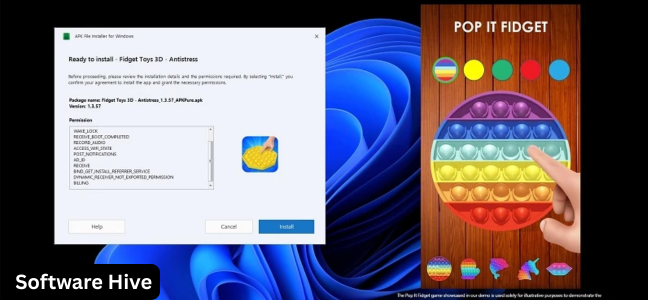

APK Installer and Launcher is a free tool that lets users install and run Android APK files directly on their computer. It integrates with Windows, placing installed APKs in the Start Menu for easy access. It makes managing APKs simpler for users who prefer desktop organization over mobile-based processes.
Welcome to the ultimate guide for APK Installer and Launcher for Windows. This free utility bridges the gap between Android and Windows, allowing you to install and run Android application packages (APK files) directly on your PC without the hassle of setting up a full Android emulator. Whether you are a developer testing apps, an enthusiast exploring Android software, or a user who prefers using Android apps on a larger screen, this tool offers a lightweight, straightforward solution.
This comprehensive guide covers everything you need to know about APK Installer and Launcher—its core features, integration with Windows, right-click installation, limitations, and how it compares to full Android emulators.
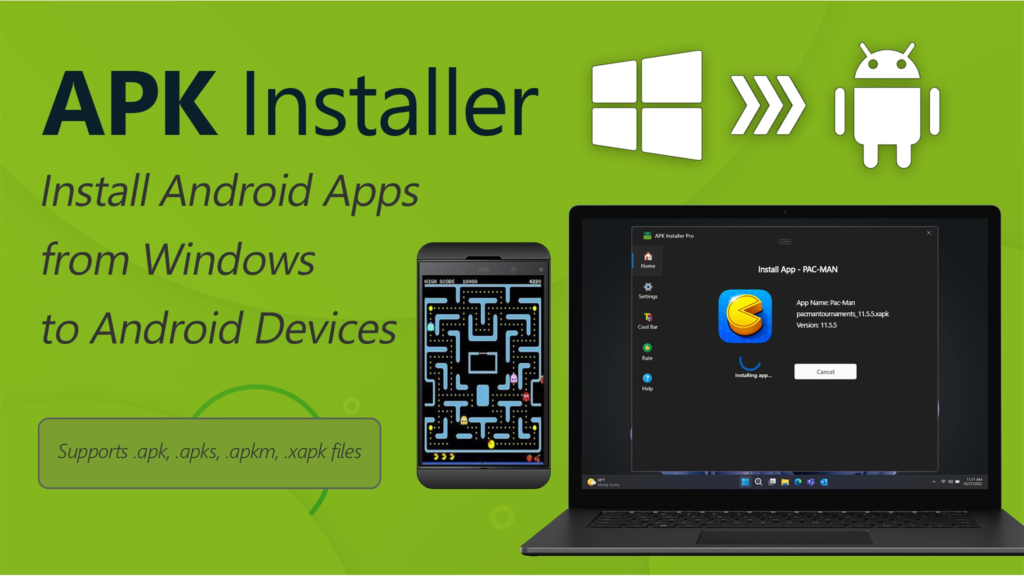
What Is APK Installer and Launcher? An Overview
APK Installer and Launcher is a free Windows utility that simplifies the process of installing and running Android APK files on a PC. Unlike traditional Android emulators that simulate a complete Android environment, this tool focuses on one task: taking an APK file and making it run like a native Windows application.
Core features at a glance:
| Feature | Description |
|---|---|
| Type | APK installer/launcher utility |
| Cost | Free |
| Platform | Windows |
| Integration | Windows Start Menu, Explorer context menu |
| Requirement | Android SDK (installed separately) |
| Best for | Basic APK installation and testing |
Why this tool stands out:
| Differentiator | Benefit |
|---|---|
| No full emulator needed | Lightweight, no virtual machine overhead |
| Start Menu integration | Installed apps appear like native programs |
| Right-click installation | Install APKs directly from Explorer |
| Simple workflow | Fewer clicks than emulator setup |
| Free | No cost to use |
Who is this for?
- Android developers testing APKs on PC
- Enthusiasts who want to run Android apps on Windows
- Users who find emulators too heavy or complex
- Anyone who frequently manages APK files
The Problem This Tool Solves
The Traditional Approach: Android Emulators
| Emulator | Pros | Cons |
|---|---|---|
| Bluestacks | Full Android environment, app store access | Heavy resource usage |
| NoxPlayer | Good performance, many features | Large download, complex setup |
| LDPlayer | Gaming-focused | Still requires emulation overhead |
The APK Installer Approach
| Aspect | Traditional Emulator | APK Installer and Launcher |
|---|---|---|
| Installation size | Hundreds of MB to GB | Lightweight (with SDK) |
| Resource usage | High (RAM, CPU) | Low |
| Setup complexity | Moderate to high | Low |
| Start Menu integration | No (separate launcher) | Yes |
Key Features
Simple APK Installation Process
| Step | Action |
|---|---|
| 1 | Download APK file (any source) |
| 2 | Right-click the APK file |
| 3 | Select “Install” from context menu |
| 4 | Tool installs the APK |
| 5 | App appears in Start Menu |
Integration with Windows Start Menu
| Benefit | Explanation |
|---|---|
| Familiar location | Find Android apps alongside Windows programs |
| Searchable | Type app name in Start Menu search |
| Pin to taskbar | Pin frequently used Android apps |
| Uninstall | Remove like any Windows app |
Convenient Right-Click Installation Option
| Feature | Benefit |
|---|---|
| Explorer context menu | Right-click any APK file |
| No separate program launch | Install directly from file manager |
| Batch installs | Install multiple APKs sequentially |
Lightweight and Easy to Use
| Aspect | Advantage |
|---|---|
| Small footprint | Minimal disk and memory usage |
| No virtual machine | No Android OS emulation overhead |
| Quick launch | Apps start faster than emulators |
How It Works (Technical Overview)
Requirements
| Requirement | Detail |
|---|---|
| Android SDK | Must be installed separately |
| Windows | Vista, 7, 8, 10 (32/64-bit) |
| APK file | Source of the Android application |
Under the Hood
APK Installer and Launcher leverages the Android SDK (Software Development Kit) tools, specifically:
- ADB (Android Debug Bridge) : Communicates with the Android environment
- AAPT (Android Asset Packaging Tool) : Processes APK files
The tool creates a bridge between the APK and Windows, allowing the Android app to run in a compatibility layer.
How to Use APK Installer and Launcher
Prerequisites
| Step | Action |
|---|---|
| 1 | Install Android SDK (from Google) |
| 2 | Download APK Installer and Launcher |
| 3 | Ensure APK files are available |
Installation Process
| Step | Action |
|---|---|
| 1 | Locate APK file in Windows Explorer |
| 2 | Right-click the APK file |
| 3 | Select “Install” from context menu |
| 4 | Wait for installation to complete |
| 5 | Open Start Menu to find the installed app |
Launching Installed Apps
| Method | Action |
|---|---|
| Start Menu | Click on app icon |
| Search | Type app name in Start Menu search |
| Pin to taskbar | Right-click app > Pin to taskbar |
Uninstalling Apps
| Method | Action |
|---|---|
| Start Menu | Right-click app > Uninstall |
| Settings | Apps > Installed apps > Uninstall |
Use Cases
For Android Developers
| Scenario | Benefit |
|---|---|
| Testing APK builds | Quickly install and test without device |
| Multiple versions | Side-by-side installation |
| Screenshots | Capture app UI on large monitor |
For Enthusiasts
| Scenario | Benefit |
|---|---|
| Try Android apps on PC | No emulator setup |
| Use phone apps on laptop | Familiar apps on larger screen |
For Casual Users
| Scenario | Benefit |
|---|---|
| APK collection management | Organize APKs like software installers |
| Retro Android apps | Run older apps not on Play Store |
APK Installer vs. Full Android Emulators
| Feature | APK Installer | Bluestacks | NoxPlayer | LDPlayer |
|---|---|---|---|---|
| Full Android OS | No | Yes | Yes | Yes |
| Google Play Store | No (needs APK) | Yes | Yes | Yes |
| Resource usage | Low | High | Medium | Medium |
| Start Menu integration | Yes | No | No | No |
| Right-click install | Yes | No | No | No |
| Gaming performance | Poor | Good | Good | Excellent |
| Development tools | Basic (APK install) | Limited | Limited | Limited |
When to Choose APK Installer
| Reason | Explanation |
|---|---|
| You only need to install APKs | No need for full Android environment |
| You have low-end hardware | Can’t run heavy emulators |
| You prefer Windows Start Menu | Want apps integrated with desktop |
| You are a developer | Fast APK testing |
When to Choose Emulators
| Reason | Explanation |
|---|---|
| You need Google Play Store | Want to download apps directly |
| You play Android games | Need better graphics performance |
| You want full Android experience | Multiple apps, notifications, etc. |
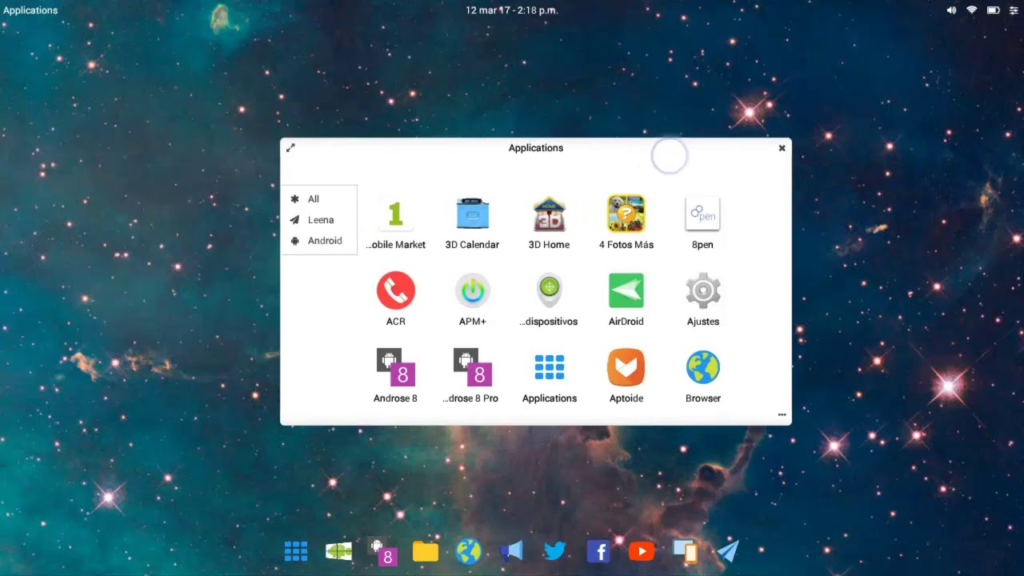
Limitations
| Limitation | Explanation |
|---|---|
| Requires Android SDK | Must install separately |
| No full emulation | Some apps may not work |
| No Play Store access | Must obtain APK files yourself |
| Limited debugging | No advanced tools like Android Studio |
| Potential compatibility issues | Not all APKs run correctly |
Pros and Cons Analysis
Advantages
| Pro | Explanation |
|---|---|
| Free | No cost to use |
| Lightweight | Minimal resource usage |
| Start Menu integration | Apps feel native to Windows |
| Right-click install | Fast, convenient workflow |
| Simple | No complex setup (beyond SDK) |
Disadvantages
| Con | Explanation |
|---|---|
| Requires Android SDK | Additional download and setup |
| No Google Play | Cannot download apps directly |
| Limited compatibility | Some apps may not work |
| No advanced features | Debugging, performance monitoring missing |
User Feedback Summary
While specific user reviews are not provided in the source, the tool has received 683,659 total downloads on CNET, indicating significant interest. The editors’ review is generally positive, highlighting its simplicity and Start Menu integration.
Likely user sentiments:
| Sentiment | Likely Reason |
|---|---|
| Positive | Lightweight, convenient, free |
| Negative | Requires SDK, limited functionality |
Frequently Asked Questions (FAQs)
1. Is APK Installer and Launcher really free?
Yes, the tool is completely free. No trial periods, no premium versions, no hidden costs.
2. Do I need Android SDK to use this tool?
Yes. The tool requires Android SDK to be installed separately. This is the primary prerequisite.
3. Can I install APKs without using a command line?
Yes. The tool provides a right-click context menu option, eliminating command-line use.
4. Will installed APKs appear in my Start Menu?
Yes. This is a key feature. Installed apps appear alongside your native Windows programs.
5. Can I run Google Play Store apps with this tool?
Not directly. You must download APK files from trusted sources and install them manually.
6. Is this tool better than Bluestacks?
It depends on your needs:
- For simple APK installation: Yes (lighter, faster)
- For gaming or full Android experience: No (emulators are better)
7. Does this tool work on Windows 11?
The system requirements list Windows 10, but it likely works on Windows 11 as well.
8. Can I install multiple APKs at once?
You can install sequentially. The tool does not support batch installation.
9. How do I uninstall an APK installed with this tool?
Use standard Windows uninstallation: Start Menu > right-click app > Uninstall.
10. Is it safe to install APKs from unknown sources?
The tool itself is safe, but APK files can contain malware. Only download APKs from trusted sources.
11. Does this tool work with Android games?
Some may work, but performance will be poor compared to dedicated emulators.
12. What Android versions are supported?
The tool relies on SDK tools; compatibility varies by APK.
13. Can I run WhatsApp or Instagram with this tool?
Theoretically yes, but these apps expect mobile hardware (camera, GPS, etc.) and may not function correctly.
14. How does this tool compare to Windows Subsystem for Android?
| Feature | APK Installer | WSA |
|---|---|---|
| Availability | Windows 10+ | Windows 11 only |
| Amazon Appstore | No | Yes |
| Google Play | No | No (requires hack) |
| Performance | Good | Better |
15. Is technical support available?
The tool is free and community-supported. No official support channel is specified.
Android SDK Installation Guide
Step 1: Download Android SDK
Visit developer.android.com/studio and download the command-line tools (not the full Android Studio, unless desired).
Step 2: Install SDK
Extract the SDK to a permanent location (e.g., C:\Android\sdk).
Step 3: Set Environment Variables
Add SDK platform-tools folder to your system PATH.
Step 4: Verify Installation
Open Command Prompt and type adb --version. If recognized, SDK is ready.
Step 5: Install APK Installer
Download and run APK Installer and Launcher.
Conclusion: A Practical Tool for APK Management
APK Installer and Launcher for Windows is a focused utility that does exactly what its name promises: installs and launches APK files on Windows. It does not pretend to be a full Android emulator, nor does it offer advanced debugging features. Instead, it excels at making APK installation as simple as right-clicking a file.
For developers testing builds, enthusiasts managing APK collections, or users who find emulators too heavy, this tool is a lightweight, convenient solution. Its integration with the Windows Start Menu and Explorer context menu makes it feel like a native part of the operating system.
Key takeaways:
| Aspect | Summary |
|---|---|
| Type | APK installer/launcher |
| Cost | Free |
| Key feature | Right-click APK installation |
| Integration | Windows Start Menu |
| Requirement | Android SDK |
| Best for | Basic APK testing and management |
| Not for | Gaming or full Android emulation |
| Verdict | Recommended for developers and enthusiasts |
If you frequently work with APK files and want a simple way to test them on your PC, give APK Installer and Launcher a try. It is free, lightweight, and gets the job done.