
In today’s connected world, your Wi-Fi network is the gateway to your digital life. A weak password can expose your personal data, devices, and online activities to anyone within range. But creating a strong, truly random password that is also compatible with all your networking hardware is harder than it looks.
Enter the WPA PSK Passphrase Generator—a tiny, free Windows utility that creates strong, 63-character random passphrases using only safe characters (A-Z, a-z, 0-9). No special symbols that might confuse older routers. No reliance on questionable online generators. Just a simple, offline tool that does one thing and does it well.
This comprehensive guide covers everything you need to know about the WPA PSK Passphrase Generator: why you need it, how it works, the importance of strong Wi-Fi passwords, and why this little utility deserves a spot on your security toolkit.
What Is a WPA PSK Passphrase Generator? An Overview
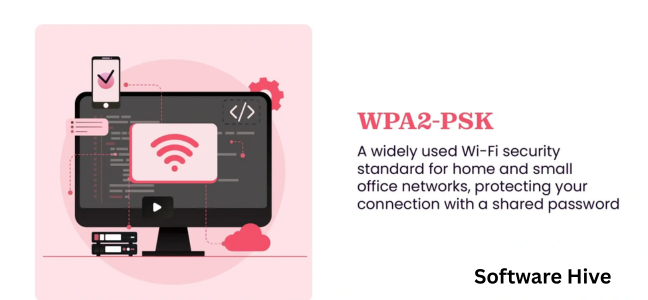
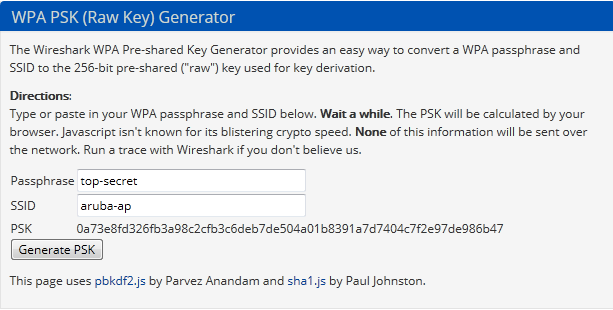
A WPA PSK Passphrase Generator is a software tool that creates random, secure passwords for Wi-Fi networks using WPA (Wi-Fi Protected Access) or WPA2 security protocols. The “PSK” stands for Pre-Shared Key—the password you type to connect to a wireless network.
The specific utility reviewed here is a free Windows application developed by an independent creator. It generates 63-character ASCII passphrases using only uppercase letters (A-Z), lowercase letters (a-z), and numbers (0-9). This character set is universally compatible with all networking hardware, unlike passphrases that include special characters (like @, #, $, %), which some older routers reject.
Key features of this tool:
- Generates 63-character passphrases – The maximum length allowed by the WPA2 standard
- Safe character set – Only A-Z, a-z, 0-9; compatible with all hardware
- One-click copy to clipboard – Easy to paste into router configuration pages
- Offline operation – No internet connection required; cannot be compromised like online generators
- Extremely small – Minimal download size, no installation fuss
- Runs on older Windows versions – Compatible with Windows 95 through Windows 10
Why you need it:
- Most people choose weak passwords (pet names, birthdays, common words)
- A 63-character random passphrase is virtually uncrackable
- Using an offline generator prevents your password from being intercepted online
Why Strong Wi-Fi Passwords Matter
Before diving into the tool itself, it is important to understand why you should care about Wi-Fi password strength.
The Threat: Wardriving and Cracking
Anyone within range of your Wi-Fi signal can attempt to connect. Using inexpensive equipment and free software, an attacker can capture the handshake between your device and router, then attempt to crack your password offline.
Cracking speeds (approximate):
- 8-character random password – Can be cracked in hours to days
- 12-character random password – Years to centuries
- 63-character random password – Effectively impossible with current technology
The Problem with Human-Chosen Passwords
Humans are predictable. When asked to create a “strong” password, people tend to:
- Use dictionary words (password, letmein, admin)
- Use names (Fluffy, Jessica, David)
- Use dates (1990, 06252015)
- Use keyboard patterns (qwerty, 123456, asdfgh)
- Slightly modify common words (p@ssw0rd instead of password)
Attackers know these patterns. Their cracking dictionaries include common substitutions.
The Solution: Long, Random, Machine-Generated Passphrases
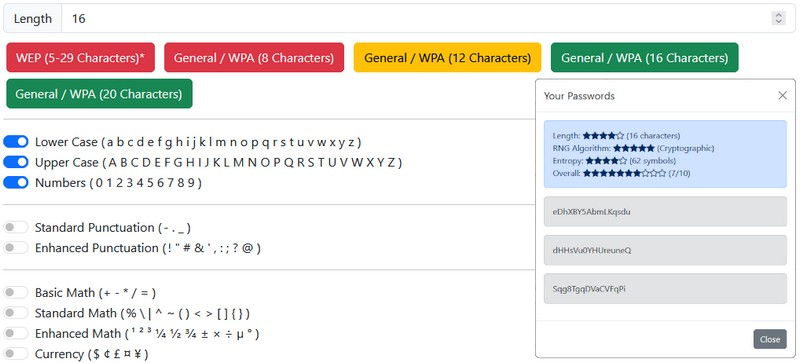
A 63-character random string like Xk7mPq2Rt9wYv4Bn6Lc8Jh1Gf3Dk5Mp7Qs2Tv9Wx4Zy6Ab8Cd1Ef3Gh5Ij7Kl9 is:
- Not in any dictionary
- Not guessable from personal information
- Long enough to resist brute-force attacks
The problem? You cannot remember it. But you do not need to—you will save it in a password manager or write it down (and store it securely).
How the WPA PSK Passphrase Generator Works
Generation Algorithm
The tool uses a pseudo-random number generator (PRNG) to create sequences of characters. Each time you run the program (or click “Generate”), it produces a new, unique 63-character string.
Character pool:
- 26 uppercase letters (A-Z)
- 26 lowercase letters (a-z)
- 10 digits (0-9)
- Total pool size: 62 characters
The 63-character length is not arbitrary. The WPA2 specification allows passphrases of up to 63 characters (and a minimum of 8). Using the maximum length provides the strongest possible security.
Copy to Clipboard Feature
Once generated, a single click copies the entire 63-character string to your Windows clipboard. You can then:
- Paste it into your router’s admin interface (to set the Wi-Fi password)
- Paste it into a password manager (for storage)
- Paste it into a text file (if you must, though this is less secure)
Offline vs. Online Generators
Many people use online passphrase generators (websites that generate random strings). These are convenient but have significant drawbacks:
| Feature | Offline Generator (This Tool) | Online Generator |
|---|---|---|
| Internet required | No | Yes |
| Password transmitted | No (generated locally) | Yes (generated on server) |
| Potential for interception | None | Possible |
| Server logs password | No | Possibly |
| Trust required | Trust the software | Trust the website + network |
Security experts recommend offline generators whenever possible. This tool provides that option.
Compatibility Considerations
The tool deliberately uses only alphanumeric characters (no punctuation). Why? Because some networking hardware—especially older routers, IoT devices, and some gaming consoles—cannot handle special characters in Wi-Fi passwords.
Characters omitted:
! @ # $ % ^ & * ( ) - _ = + [ ] { } \ | ; : ' " , . < > / ?and space
By limiting output to A-Z, a-z, 0-9, the generated passphrase will work with any WPA/WPA2-compatible device, regardless of age or manufacturer.
How to Use the WPA PSK Passphrase Generator
Installation
- Download the utility from CNET Download (or the developer’s site)
- Run the executable – No installation required (portable application)
- The program window opens immediately
Generating a Passphrase
- The program displays a 63-character random string by default (or when you launch it)
- To generate a new passphrase, click the Generate button (or equivalent)
- The new passphrase appears in the text box
Copying to Clipboard
- Click the Copy to Clipboard button
- The entire 63-character string is now saved to your clipboard
- You can paste it anywhere (Ctrl+V)
Setting Your Router’s Wi-Fi Password
- Log into your router’s admin interface (typically 192.168.0.1 or 192.168.1.1)
- Navigate to Wireless Settings or Wi-Fi Settings
- Look for “WPA Passphrase,” “Pre-Shared Key,” or “Wi-Fi Password”
- Paste the generated string (Ctrl+V)
- Save/Apply settings
- Your router will restart the wireless radio (brief disconnection)
Connecting Your Devices
After changing the router’s password, all previously connected devices will be disconnected. You must:
- On each device, forget the old Wi-Fi network
- Reconnect, pasting or typing the 63-character passphrase
- The device will save the new password
Pro tip: Have the passphrase in a text file on a USB drive or your phone for easy access when reconnecting devices.
Best Practices for Wi-Fi Security
Using a strong password is just one part of securing your home network.
Do
Use WPA2 or WPA3: Ensure your router is set to WPA2-PSK (AES) or WPA3, not WEP or WPA-TKIP. WEP can be cracked in minutes.
Change the default admin password: Many routers use default credentials like admin/admin. Change them.
Disable WPS: Wi-Fi Protected Setup (push-button or PIN) is a known security vulnerability. Disable it in router settings.
Update router firmware: Manufacturers release security patches. Check for updates every few months.
Use a guest network: For visitors, smart home devices, or IoT gadgets that do not need access to your main network.
Store the passphrase securely: Use a password manager (Bitwarden, Keepass, LastPass, 1Password). If you must write it down, store the paper in a secure location (safe, locked drawer).
Do Not
Do not use a weak password: Avoid dictionary words, names, dates, and patterns.
Do not share the passphrase unnecessarily: Only give it to trusted individuals.
Do not use the same passphrase for multiple networks: If one network is compromised, others remain safe.
Do not email the passphrase to yourself: Email is not secure. Use a password manager or encrypted message.
Do not post it on your router: Writing the password on the router itself is common but insecure. Anyone with physical access can connect.
Frequently Asked Questions (FAQs)
1. Is the WPA PSK Passphrase Generator really free?
Yes, this tool is completely free. There are no charges, no subscriptions, no in-app purchases. It is a simple utility provided as-is by the developer.
2. Do I need to install anything?
No. The tool is a portable executable (single .exe file). You can run it directly from your Downloads folder without installation. No registry changes, no leftover files.
3. Will this passphrase work with all my devices?
Yes. The generator uses only alphanumeric characters (A-Z, a-z, 0-9), which are supported by every WPA/WPA2-compatible device ever made. Some older devices choke on special characters like @, #, or $; this tool avoids them entirely.
4. Why 63 characters? Why not shorter?
The WPA2 standard allows passphrases of up to 63 characters. Using the maximum length provides the strongest security. A 63-character random string is effectively impossible to crack with current technology. Shorter passphrases (even 20-30 characters) are also very strong, but why not use the maximum?
5. Can I remember a 63-character password?
No—and you are not supposed to. The purpose of this tool is to generate a password that is too long and random for a human to remember. You will store it in a password manager or write it down (and keep that paper secure). You only need to enter it once per device.
6. Is this tool safe to use?
Yes, with common sense. The tool runs locally on your computer. It does not transmit your generated passphrase anywhere. However, always download software from reputable sources (CNET Download is legitimate, but be aware of download wrappers that may offer additional software). Scan the file with antivirus software before running.
7. Can I use this tool on Windows 11?
Yes. Although the system requirements list older Windows versions (95 through 10), the tool is likely compatible with Windows 11 as well. The core functionality is simple and does not rely on modern APIs.
8. Why not just use my router’s built-in password generator?
Many routers include a “generate random password” feature. However, these often produce shorter passwords (8-12 characters) or include special characters that some devices reject. This tool gives you more control and the maximum length.
9. How is this different from an online password generator?
Online generators run on a remote server. Your password is transmitted over the internet (even if via HTTPS, the server still sees it). That server could be compromised, or the operator could log passwords. An offline generator like this tool creates the password entirely on your own computer—no transmission, no exposure.
10. What if I lose the passphrase?
If you lose the passphrase, you will not be able to connect new devices to your Wi-Fi. However, devices that are already connected will remain connected unless they forget the network. To recover, you can:
- Log into your router and view the current passphrase (if you remember the router admin password)
- Reset your router to factory defaults and set a new passphrase
- Keep a backup copy of the passphrase in a password manager or secure document
11. Is this tool compatible with WPA3?
WPA3 is the newer Wi-Fi security standard. It supports longer passphrases and stronger encryption. While this tool generates passphrases that will work with WPA3 (alphanumeric characters are fine), WPA3 does not require the same 63-character limit. Still, a strong random passphrase is beneficial regardless of the protocol.
12. Why do some online reviews mention “no special characters” as a con?
Some users prefer to include special characters in their passwords, believing they add security. However, the alphanumeric pool (62 characters) is already more than sufficient. Adding special characters increases the pool size slightly (to about 95 characters), but the length (63 characters) matters far more than the character set. A 63-character alphanumeric password is astronomically stronger than a 12-character password with special characters.
Conclusion: Small Tool, Big Security
The WPA PSK Passphrase Generator is a humble utility that solves a real problem: creating strong, compatible Wi-Fi passwords without relying on questionable online services. It does one thing, does it well, and stays out of your way.
In an era of data breaches, IoT vulnerabilities, and wardriving attacks, your Wi-Fi password is your first line of defense. Do not leave it to chance. Do not rely on memorable-but-weak passwords. Generate a 63-character random string, paste it into your router, and store it safely.
The download is small. The effort is minimal. The security benefit is enormous.
So download the tool. Generate your passphrase. Update your router. Reconnect your devices. Sleep better knowing that your Wi-Fi network is protected by a password that no attacker will crack in your lifetime.