
In the world of 3D design and computer-aided engineering, file format compatibility can make or break a workflow. SolidWorks is one of the most powerful and widely used CAD (Computer-Aided Design) platforms in the world, but it uses proprietary file formats that are not always compatible with other software. This is where OBJ Export for SolidWorks comes into play.
This specialized utility bridges the gap between SolidWorks and the broader 3D ecosystem by converting SolidWorks part and assembly documents into the universally recognized Wavefront OBJ format. Whether you are preparing models for 3D printing, game development, or visualization in other software, this tool provides a direct, reliable export path.
This comprehensive guide covers everything you need to know about OBJ Export for SolidWorks, including its features, benefits, installation, usage, and why this simple utility remains valuable for 3D professionals.
What Is OBJ Export for SolidWorks? An Overview
OBJ Export for SolidWorks is a software add-on or utility that enables users of SolidWorks to export their 3D models to the Wavefront OBJ file format. The OBJ format is one of the most widely supported 3D geometry formats, used by countless applications including:
| Application Type | Examples |
|---|---|
| 3D modeling software | Blender, Maya, 3ds Max, Cinema 4D |
| Game engines | Unity, Unreal Engine, Godot |
| 3D printing software | Slicers like Cura, PrusaSlicer |
| CAD viewers | Many free and paid viewers |
| Augmented/Virtual Reality | AR/VR development platforms |
| Web 3D frameworks | Three.js, Babylon.js |
The utility focuses on one task: exporting SolidWorks 3D data to OBJ files. It does not import OBJ files back into SolidWorks, and it does not perform any editing or conversion beyond geometry export.
Key capabilities:
- Exports 3D solid and surface data directly to OBJ files
- Converts SolidWorks part and assembly documents
- Generates individual triangular meshes from solid bodies
- Supports the standard Wavefront OBJ file format
What Is the OBJ File Format?
Before diving into the software itself, it is helpful to understand what OBJ files are and why they matter.
History of OBJ
The Wavefront OBJ format was developed by Wavefront Technologies for its Advanced Visualizer animation software in the 1980s. Since then, it has become a de facto standard for 3D geometry exchange due to its simplicity and wide support.
OBJ File Structure
An OBJ file is a plain text file that describes 3D geometry. It contains:
| Component | Description |
|---|---|
| Vertices (v) | 3D point coordinates (x, y, z) |
| Texture coordinates (vt) | UV mapping coordinates for textures |
| Vertex normals (vn) | Surface orientation data for lighting |
| Faces (f) | Connections between vertices (triangles, quads, or polygons) |
| Object names (o) | Names for different parts within the file |
| Groups (g) | Grouping of faces for organization |
Why OBJ Is Popular
| Advantage | Explanation |
|---|---|
| Open standard | No licensing fees, widely documented |
| Human-readable | Can be edited in any text editor (for simple changes) |
| Broad support | Almost every 3D software can import OBJ files |
| Material support | OBJ files can reference external MTL (Material Template Library) files for colors and textures |
Limitations of OBJ
| Limitation | Explanation |
|---|---|
| No animation | OBJ stores static geometry only |
| No hierarchy | Limited support for scene hierarchies |
| No NURBS | OBJ uses polygons/triangles only, not mathematical surfaces |
| Large file size | Text-based format is larger than binary formats |
Key Features of OBJ Export for SolidWorks
1. Direct Export of SolidWorks Data
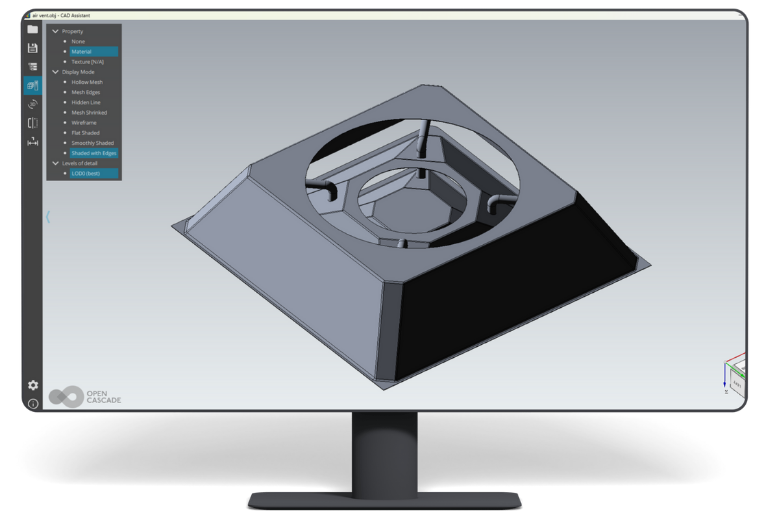
The utility connects directly to SolidWorks and exports 3D models without intermediate steps. You do not need to save to another format first.
2. Support for Part and Assembly Documents
| Document Type | Export Behavior |
|---|---|
| SolidWorks Part (.SLDPRT) | Exports individual solid bodies as meshes |
| SolidWorks Assembly (.SLDASM) | Exports each component individually, preserving relative positions |
3. Triangular Mesh Generation
SolidWorks uses exact mathematical surfaces (NURBS) to represent geometry. OBJ files require triangular meshes (facets). OBJ Export for SolidWorks performs this conversion automatically, generating individual triangular meshes from solid bodies.
Key point about triangulation:
- Complex curved surfaces are approximated by many small triangles
- Higher triangle counts = smoother appearance but larger file size
- Lower triangle counts = rougher appearance but smaller file size
4. Support for Wavefront OBJ Standard
The exported files are standard OBJ format, compatible with virtually any 3D software that supports OBJ import.
5. Lightweight and Focused
The utility does one thing and does it well. Unlike full-featured CAD translation software, OBJ Export for SolidWorks has no unnecessary features or complexity.
Why Export from SolidWorks to OBJ?
SolidWorks users may need OBJ export for several reasons:
1. 3D Printing
While SolidWorks has its own 3D printing tools, some users prefer other slicers or need to prepare models for external printing services. OBJ is a widely accepted format for 3D printing.
2. Game Development
Game engines (Unity, Unreal Engine) do not read SolidWorks files directly. Exporting to OBJ provides a bridge to import mechanical models into game environments.
3. Visualization and Rendering
Artists and animators using software like Blender, Maya, or 3ds Max need OBJ files to bring CAD models into creative workflows.
4. Web and AR/VR Integration
Web 3D frameworks like Three.js and WebGL libraries typically support OBJ or require conversion from OBJ to other web-friendly formats like GLTF.
5. Collaboration with Non-CAD Users
Engineers often need to share 3D models with clients or colleagues who do not have SolidWorks. OBJ files can be viewed in free software, making collaboration easier.
6. Archiving
OBJ is an open, well-documented format. Exporting to OBJ ensures that 3D models remain readable decades later, even if SolidWorks is no longer available.
How to Use OBJ Export for SolidWorks
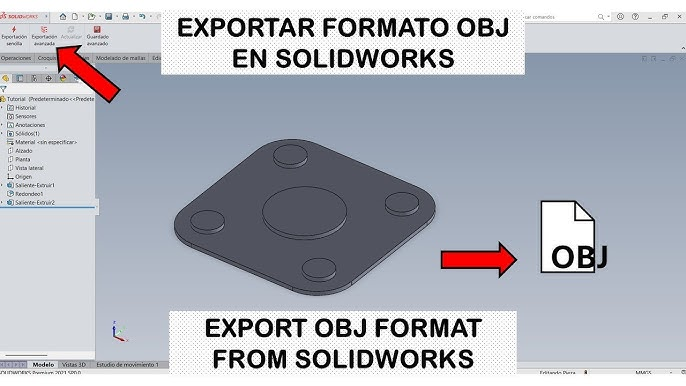
System Requirements
| Requirement | Detail |
|---|---|
| Operating System | Windows 95 through Windows 10 (and likely 11) |
| Software | SolidWorks (any version compatible with the exporter) |
| Hardware | Standard SolidWorks requirements |
Installation
- Download OBJ Export for SolidWorks from CNET Download or the developer’s website
- Run the installer (may require SolidWorks to be closed)
- Follow the installation wizard to install the exporter as a SolidWorks add-in
- Launch SolidWorks
Locating the Export Function
After installation, the export function typically appears in one of these locations:
- File > Export menu
- File > Save As dialog (look for OBJ in file type dropdown)
- Tools > Add-ins (may need to enable the exporter)
- A dedicated toolbar button
Exporting a Part
- Open your SolidWorks part (.SLDPRT) in SolidWorks
- Select the export function (method varies by version)
- Choose OBJ as the export format
- Adjust export settings (triangle density, coordinate system, units)
- Select a destination folder and filename
- Click Export or Save
Exporting an Assembly
- Open your SolidWorks assembly (.SLDASM) in SolidWorks
- Select the export function
- Choose OBJ as the export format
- Choose to export all components or a selection
- Adjust export settings
- Export
Typical Export Settings
| Setting | Options | Effect |
|---|---|---|
| Triangulation quality | Low, Medium, High | Affects mesh smoothness and file size |
| Output units | Millimeters, Centimeters, Inches, Meters | Affects scale in destination software |
| Coordinate system | World, Local | Affects orientation |
| Include materials | Yes/No | Exports MTL file for colors/textures |
| Export individual components | As separate files or combined | Affects how assembly exports |
Workflow Examples
Example 1: 3D Printing a Mechanical Part
- Design part in SolidWorks
- Use OBJ Export for SolidWorks to export as OBJ
- Import OBJ into slicer software (Cura, PrusaSlicer)
- Generate G-code
Example 2: Creating Product Visualization in Blender
- Design product in SolidWorks
- Export assembly as OBJ (with materials if available)
- Import OBJ into Blender
- Apply realistic materials and lighting
- Render high-quality images
Example 3: Integrating CAD Models into a Unity Game
- Design game assets (weapons, vehicles, props) in SolidWorks
- Export each asset as OBJ
- Import OBJ into Unity
- Add textures, animations, and scripting
- Deploy game
Example 4: Web-Based 3D Viewer for Clients
- Prepare 3D model in SolidWorks
- Export to OBJ
- Convert OBJ to GLTF using free converters
- Upload to web-based 3D viewer
- Share link with clients
Limitations of OBJ Export for SolidWorks
No Import Functionality
The utility only exports. It cannot import OBJ files back into SolidWorks. If you need to edit OBJ files in SolidWorks, you would need a separate import tool.
Triangular Mesh Only
OBJ Export for SolidWorks converts surfaces to triangular meshes. It does not preserve NURBS surfaces. If you need to maintain exact mathematical surfaces, consider formats like STEP or IGES.
No Animation or Hierarchies
OBJ files are static. If you have animated assemblies or exploded views, the exported OBJ will capture only a single frame.
No Texture Baking
While OBJ files can reference material files (MTL), complex textures and appearances may not export perfectly. For photorealistic rendering, additional work may be needed in the destination software.
SolidWorks Dependency
This is not a standalone converter. You must have SolidWorks installed to use it.
Limited to Windows
SolidWorks runs on Windows only. Therefore, OBJ Export for SolidWorks is Windows-only as well.
Alternatives to OBJ Export for SolidWorks
| Alternative | Description | Pros | Cons |
|---|---|---|---|
| SolidWorks Save As (STL) | Built-in STL export | Free, no add-on needed | STL is less flexible than OBJ |
| SolidWorks Save As (3MF) | Built-in 3MF export | Good for 3D printing | Less universal than OBJ |
| FreeCAD | Open-source CAD with SolidWorks import (via STEP) | Free | Not a direct export |
| MeshLab | Open-source mesh processing | Can convert other CAD formats | Requires intermediate format |
| CAD Exchanger | Professional CAD translation | Supports many formats | Expensive |
| Datakit | CAD conversion libraries | Reliable | Commercial product |
When to Use OBJ Export for SolidWorks
Choose OBJ Export for SolidWorks if:
- You need direct OBJ export without intermediate conversion
- You want simplicity without complex settings
- You work with game engines or web 3D that prefer OBJ
When to Use Alternatives
Choose alternatives if:
- You need STL or 3MF for 3D printing (SolidWorks built-in works)
- You need STEP or IGES for CAD-to-CAD exchange
- You need free options (use SolidWorks native export + MeshLab conversion)
- You work on Mac or Linux (this tool is Windows-only)
Frequently Asked Questions (FAQs)
1. Is OBJ Export for SolidWorks really free to use?
The CNET Download page lists the software as available for download, but users should verify the licensing model. Some CAD utilities are free; others require purchase. Check the developer’s website for current pricing.
2. Does OBJ Export for SolidWorks work with all SolidWorks versions?
The utility supports SolidWorks versions from the Windows 95/98/XP era through Windows 10. Compatibility with the latest SolidWorks versions (2024, 2025, 2026) is not guaranteed but likely for basic export functionality. Check system requirements before purchasing.
3. What is the difference between OBJ and STL?
Both are 3D mesh formats, but they serve different purposes:
| Feature | OBJ | STL |
|---|---|---|
| File structure | Text (human-readable) | Binary or text |
| Color/material | Yes (MTL file) | No |
| Vertex normals | Yes (better lighting) | No |
| Texture coordinates | Yes | No |
| Common use | Visualization, game dev | 3D printing |
For 3D printing, STL is often sufficient. For rendering and game development, OBJ is preferred.
4. Can I export assemblies with OBJ Export for SolidWorks?
Yes. The utility converts SolidWorks assembly documents (.SLDASM) to OBJ. Each component is typically exported as part of the same OBJ file, preserving relative positions.
5. Does OBJ Export for SolidWorks preserve colors and textures?
OBJ files can reference MTL (Material Template Library) files that store color and texture information. The utility likely exports basic material data, but complex SolidWorks appearances may not translate perfectly. Test with a simple model first.
6. Why does my exported OBJ look faceted instead of smooth?
OBJ files store geometry as flat triangles. Curved surfaces are approximated by many small triangles. If the triangle count is too low, the surface will appear faceted. Look for export settings that control “triangulation quality” or “mesh density” and increase them for smoother results (at the cost of larger file size).
7. Can I use the exported OBJ in Blender?
Yes. Blender imports OBJ files natively (File > Import > Wavefront OBJ). This is one of the most common workflows for SolidWorks to Blender visualization.
8. What is the maximum file size OBJ Export can handle?
OBJ file size is limited by SolidWorks’ ability to open the model and the available system memory. Very large assemblies (thousands of parts) may produce OBJ files that are slow to load in other software. The exporter itself should handle any model that SolidWorks can open.
9. Is there a Mac version of OBJ Export for SolidWorks?
No. SolidWorks runs only on Windows. Therefore, OBJ Export for SolidWorks is Windows-only. Mac users would need to run Windows via Boot Camp or virtualization (Parallels, VMware) to use SolidWorks and this utility.
10. How does OBJ Export for SolidWorks compare to native SolidWorks STL export?
SolidWorks includes built-in STL export (File > Save As > STL). OBJ offers advantages over STL:
| Capability | OBJ | STL |
|---|---|---|
| Color/material info | Yes | No |
| Texture coordinates | Yes | No |
| Vertex normals | Yes | No |
| File size | Larger | Smaller |
| 3D printing support | Limited | Excellent |
If you only need 3D printing, STL may suffice. For visualization, game development, or web 3D, OBJ is better.
11. What are triangular meshes?
A triangular mesh (or “triangulated mesh”) is a way of representing 3D surfaces as a collection of flat triangles. Complex curved surfaces are approximated by many small triangles. This is how 3D printing software, game engines, and most rendering software understand 3D geometry.
12. Does this utility support SolidWorks configurations?
Probably, but test with your version. SolidWorks configurations allow different versions of a part within one file. The exporter should export the active configuration. Check if there are settings to export all configurations or just the active one.
13. Can I export welded assemblies (single mesh)?
Export settings typically offer a choice:
- Export as separate objects – Each component retains its identity (useful for assigning different materials later)
- Export as single combined mesh – All components merged into one object (useful for 3D printing where seams don’t matter)
Choose the option that fits your destination software.
14. Why is OBJ Export useful if SolidWorks can save as STL?
OBJ is more versatile for workflows beyond 3D printing:
| Workflow | Better Format |
|---|---|
| 3D printing | STL or 3MF |
| Game development | OBJ or FBX |
| Web 3D (Three.js) | OBJ (or GLTF) |
| Rendering/Animation | OBJ or FBX |
| CAD-to-CAD exchange | STEP or IGES |
OBJ Export for SolidWorks provides capabilities that native SolidWorks lacks, particularly for visualization and game development pipelines.
15. How do I know if OBJ Export for SolidWorks is compatible with my SolidWorks version?
Check the system requirements. The software was last updated during the Windows XP/Windows 10 era. Compatibility with SolidWorks 2024-2026 is not guaranteed but likely for basic geometry export. Many CAD add-ons remain functional across versions. Test the free trial (if available) before purchasing.
Conclusion: Bridging SolidWorks to the 3D World
OBJ Export for SolidWorks solves a specific but important problem: getting SolidWorks models into the broader 3D ecosystem. While SolidWorks excels at mechanical design, its native file formats are not always compatible with 3D printing slicers, game engines, or web-based 3D viewers.
This utility provides a direct, reliable export path to the universal OBJ format. It converts SolidWorks parts and assemblies into triangular meshes that any 3D software can read. Whether you are a product designer preparing models for client presentations, an engineer collaborating with animators, or a hobbyist 3D printing mechanical parts, OBJ Export for SolidWorks streamlines your workflow.
Key Takeaways:
| Feature | Benefit |
|---|---|
| Direct export | No intermediate formats needed |
| Assembly support | Preserves multi-part relationships |
| Triangle mesh generation | Ready for game engines and 3D printing |
| OBJ standard | Compatible with virtually all 3D software |
| Lightweight | Does one thing well |
The software has limitations—it only exports, only creates triangular meshes, and requires SolidWorks. But within those boundaries, it performs its function efficiently and reliably.
For SolidWorks users who need to share models with the wider 3D world, OBJ Export for SolidWorks is a valuable addition to the toolbox.